Scottronic Sales and Service Ltd.
P.O. Box 495, Kerikeri. Bay of Islands.
Innovators in Electronics. New Zealand 0470. Email: keith@scottronic.com
Phone: (64) 9 407-5581 Fax: (64) 9 407-5582 Web site: www.scottronic.com
CABTAB FLEET MANAGEMENT SOFTWARE
Novax
Fleet Management Software
Novax CabTab Software is primarily a “Networking Utility” designed to grow with your needs. It currently supports the SMS Text network.
In its simplest form, drivers can use their cell phone to “log-on” and “Log off”, CabTab will monitor drivers’ working hours, and provide warnings should the regulated breaks not be taken. These warnings, and other messages can be sent from the office computer to individual cabs.
When Novax meters are used in the fleet, “Log-on” and “Log-off” events are sent automatically by the meter when switched between “Off” and “For Hire”, in fact the Status of the meter (For Hire, Hired or Off) is continually monitored by CabTab.
When the fleet is fitted with Novax 2020 meters, the CabTab “Dispatch” module provides a means to enter phone jobs, dispatch available cars at the appropriate time and to log all jobs dispatched.
Vehicle location is also an option, where GPS receivers are fitted.
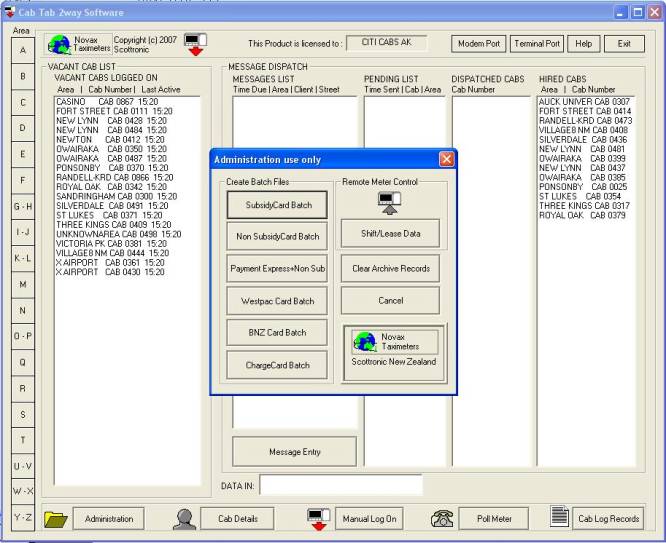
The CabTab “Fareback” module provides a means to record and process all non-cash records (or all records if required) with optional Bank Card batching, ARTA “Total Mobility” batching, or “CSV” file batching.
Description of Novax Network Operation
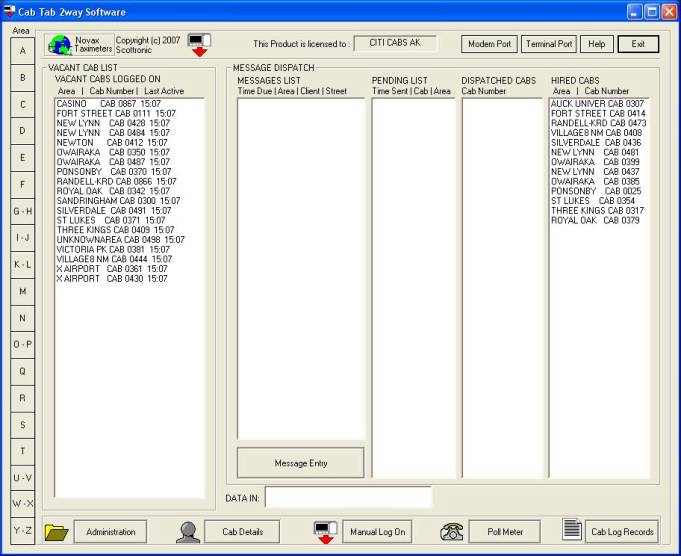
CabTab lists all cabs logged on to the system in one of three columns: For Hire, Dispatched, and Hired. When a meter’s status changes it generates an event message, and sends it to the office computer. The meter status is recorded by Cab-Tab, which moves the “CabNo.” to the appropriate column for its new status. For example a cab just finishing a job will be moved from the “Hired” list to the “Vacant” list. If a GPS sensor is fitted to the vehicle, the message will include the cab’s location. Thus CabTab’s main display shows a list of all available cars, and the area they were in when last reported.
Vehicles can be setup to “Poll” which means every 2 minutes the meter sends the base its current GPS location as so as the base has up to date locations of each vehicle. These cab status, GPS coordinates, direction and speed are constantly updated in a file that can be accessed by third party mapping software such as Google Earth.
A mapping demo is available on our website.
Dispatch Message Entry
All cabs which are logged on, appear on the CabTab screen. Depending on their status, they will be listed in one of the columns: “Vacant”, “Dispatched” or “Hired”.
A fourth column shows the “Dispatch messages” queue. As these fall due, they will pop-up for assignment to waiting cabs.
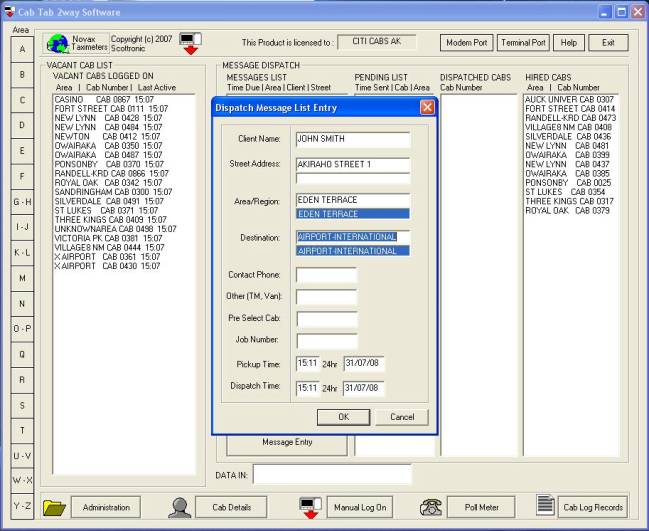
“Phone jobs” are entered by hitting the “Message Entry” button. A pop-up “Job Entry” screen prompts for the job details, pre-emptive Street names and Districts help reduce typing times. The “Dispatch Time” that the vehicle is to be sent can be post-dated; minutes, hours or even days in advance. Once the job is entered it appears in the column “Message List” on the main screen, until the appropriate time for it to be dispatched. If required additional phone operators can enter jobs on networked terminals, these will then be passed to the “Message List”.
Cab Allocation for Dispatch Message
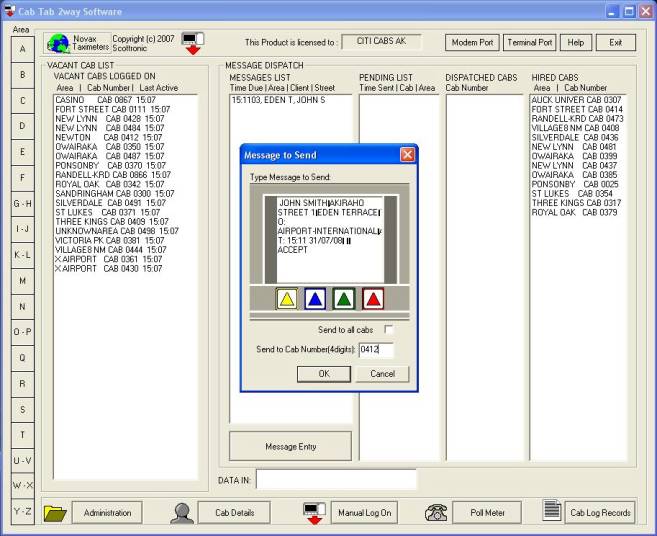
As jobs fall due for dispatch a message box pops up with the job details and prompts for a cab number. The selection can be made from the cars available, and the job dispatched. The operator can select the cab from the list, according to its location and its priority in the queue. The dispatch message is then sent to the selected cab, and the detail of the job will appear on his meter. The driver can then “Accept” the job, with the appropriate button, this response moves the “CabNo” to the “Dispatched” list on CabTab. When the meter changes state (to “Hired”) CabTab moves the “Cab” to the “Hired” column.
All dispatched jobs are recorded in the daily “archives” file. The working hours for each cab is monitored, should this exceed the limit a pop-up message will show, which can optionally be sent to the driver.
“FareBack” Module
When a meter returns to “For Hire” (at the end of a job), the full fare details and payment record is optionally recorded by CabTab. The Novax 2020 taximeter supports Credit cards, Loyalty cards, Charge cards and Subsidy cards, applying any subsidy, discount or surcharge to the metered fare and to the passenger’s receipt. CabTab’s administration features allows processing of these records, periodically batching them into the appropriate format for the appropriate bank, service provider or authority. For example each month, all Total Mobility records will be batched and forwarded to ARTA. The records are batched in the format required, plus a summary of the batch is created for importing into a spreadsheet, database or invoicing program, or it can be simply printed. For Credit card transactions, a CSV file can be created ready to be picked up by “Payment Solutions” or some other service provider. Batching modules can be written for specific banks should this be required.
Administration Features
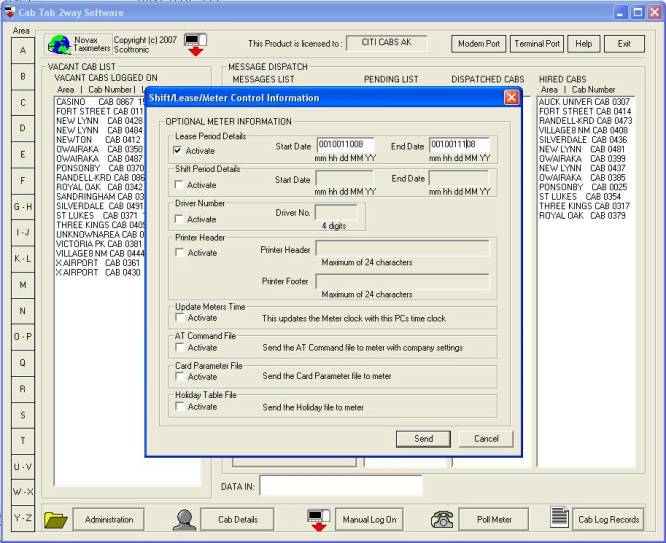
Depending on the configuration of the Novax 2020 meters, the CabTab Software has the ability to have remote control over the hours (shift) that an individual meter/driver in the fleet can work or the period (lease). This means an operator can lease meters to the drivers for a set period and once the lease has expired the base will need to renew the lease dates to allow the meter to function again. Printer header/footers, meter time/dates, Holiday tables can all be sent to the meters.
Drivers Working Hour Records
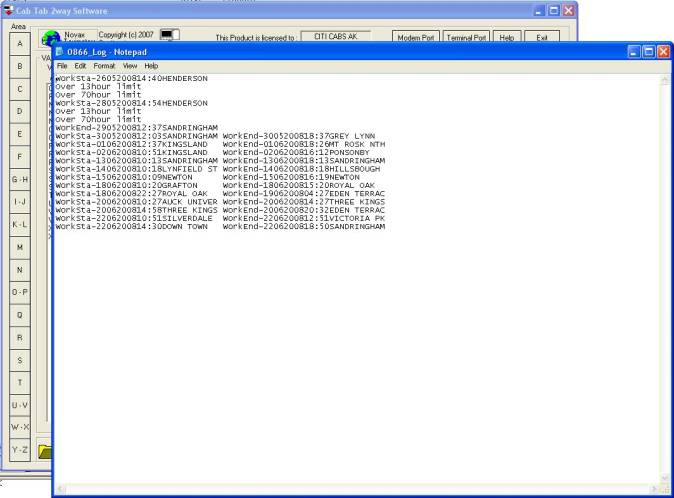
With the new regulations regarding driver working hours and rest times, the full bi-directional network system can help the office to comply with the requirements. When taking a rest, the driver will switch his meter to “Off”, an encoded text-message is sent to the office to log him off the software and his rest period begins. The drivers’ rests and working hours can thus be logged by the office software. Warnings can be issued if the working hour limits are exceeded. As each driver logs on (by switching the meter to the “For Hire” mode), the time, date and location are all recorded by the office system.
Each driver is allocated 4 timers by the software, these record the length of the drivers rest and one for each of the working hour limits (one timer for 7 hour, one for 13 hour and one for 70 hour working limits). When a driver takes a break, his rest period needs to exceed the limit required to reset these timers (ie 30 min to reset 7 hour timer, 10 hour rest to reset 13 hour timer and 24 hour rest to reset 70 hour timer). If drivers exceed these working hours then the breaches are recorded in the drivers log. Depending on software configuration, warning messages can be sent to the drivers telling them that they have breached the 7 hour, 13 hour or 70 hour working limits.